

Download HistoryBlock – Secure Firefox History Cleaner, Private Browsing Alternative
Overview
HistoryBlock is a lightweight Firefox add‑on designed for users who want precise control over what gets stored in their browsing history. Unlike Firefox’s built‑in private‑browsing mode, which disables history recording for the entire session, HistoryBlock lets you selectively block individual domains with a single right‑click command called “Block This!”. When you activate the block, the extension stops recording page visits, cookies, and related data for that specific site, effectively blacklisting it from your history.
This granular approach is ideal for situations where you only need to hide activity on certain pages—such as shopping sites, research portals, or any location you prefer to keep out of the public eye—without sacrificing the convenience of normal browsing elsewhere. The add‑on integrates seamlessly into Firefox 3.5 and later, providing a fast, intuitive way to protect privacy without toggling an entire mode on and off. Its recent code refactor improves performance, cleans up domain handling, and resolves known cookie‑expiry bugs in Firefox 3.6, ensuring a smoother experience for both novice and power users.
Key Features & Benefits
- Domain‑Specific Blocking: Right‑click any page and select “Block This!” to instantly prevent that site from being logged in history.
- Cookie Suppression: Blocks cookies from blacklisted domains, reducing tracking while you browse.
- Granular Control: Unlike full private mode, you decide exactly which sites stay hidden, keeping the rest of your history intact.
- Simple Unblock Process: Remove a domain from the blacklist via the add‑on’s Options menu, restoring normal history recording for that site.
- Optimized Performance: Recent refactoring centralizes the blocking engine, resulting in faster response times and lower memory usage.
- Improved Domain Handling: Distinguishes between subdomains (e.g.,
mail.google.comvs.google.com) for more accurate blocking. - Compatibility Fixes: Addresses Firefox 3.6 cookie‑expiry bugs, ensuring blocked cookies are correctly restored when needed.
- Lightweight Footprint: Minimal impact on browser speed, making it suitable for older systems.
By providing a discreet, one‑click method to keep sensitive browsing out of your history, HistoryBlock enhances privacy while preserving the normal workflow of everyday browsing. It is particularly useful for professionals handling confidential information, students researching sensitive topics, or anyone who wants to avoid accidental exposure of their browsing habits. The add‑on’s intuitive interface means you don’t need to remember complex settings—just right‑click and block.
Installation, Usage & Compatibility
Installing HistoryBlock is straightforward. Open Firefox, navigate to the official Mozilla Add‑ons site, search for “HistoryBlock,” and click the “Add to Firefox” button. After confirming the installation prompt, the add‑on appears as a small icon next to the address bar and adds the “Block This!” option to the right‑click context menu. No additional configuration is required for basic operation.
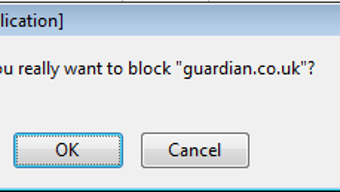
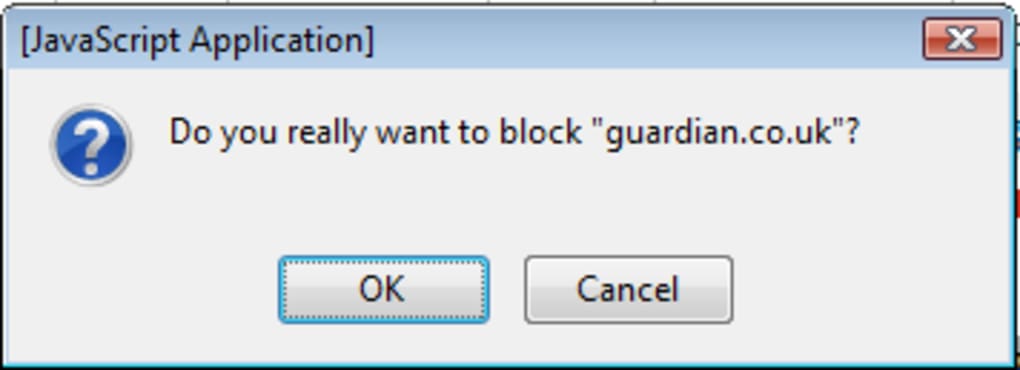
To use the extension, simply browse to a site you wish to hide, right‑click anywhere on the page, and choose “Block This!”. The domain is instantly added to HistoryBlock’s internal blacklist. From that point onward, any visits to that domain—whether through new tabs, bookmarks, or redirects—will not be recorded in the history log, and associated cookies will be suppressed.
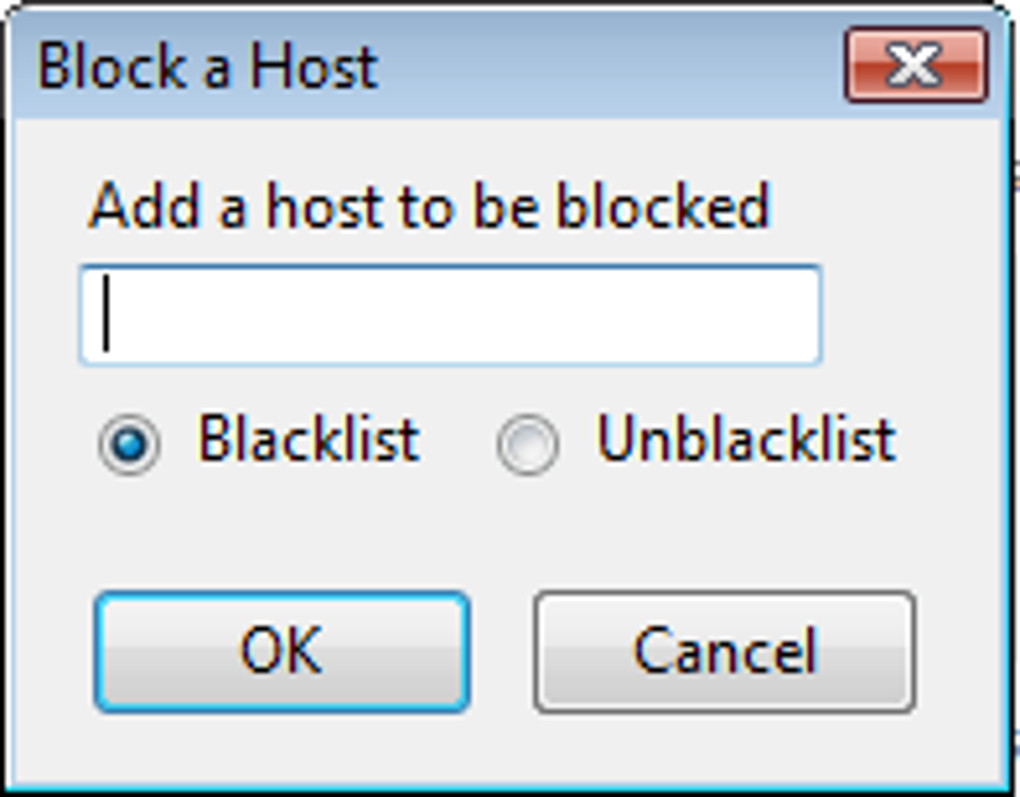
If you later decide to re‑allow the site, open the Firefox menu → Add‑ons → Extensions → HistoryBlock → Options. In the Options window, type the domain you want to unblock and click “Remove from blacklist”. The site will then resume normal history recording.
Compatibility: HistoryBlock is built for Firefox 3.5 and newer versions, including the Extended Support Release (ESR) series. It runs on Windows (XP, 7, 8, 10, 11), macOS (10.6 and later), and Linux distributions that support the Firefox browser. Because it is an add‑on rather than a standalone application, there are no separate system requirements beyond the host browser itself.
The add‑on receives automatic updates through Firefox’s built‑in extension updater, ensuring you always have the latest bug fixes and performance improvements. Updates are delivered securely over HTTPS and verified with Mozilla’s signing process, so you can download and install them with confidence.
Pros, Cons, FAQ & Final Thoughts
Pros
- Selective domain blocking offers finer privacy control than full private mode.
- One‑click “Block This!” makes the workflow fast and intuitive.
- Suppresses cookies, reducing third‑party tracking on blacklisted sites.
- Low memory and CPU usage; does not slow down the browser.
- Regular updates through Mozilla’s secure channel.
Cons
- Cannot view the blacklist directly within the UI; you must use the Options page to manage it.
- Only works with Firefox; no versions for Chrome, Edge, or Safari.
- Does not block HTTPS‑encrypted data beyond cookies and history (e.g., local storage).
Frequently Asked Questions
Can HistoryBlock block multiple subdomains at once?
Yes. When you block a parent domain (e.g., example.com), HistoryBlock automatically applies the block to all its subdomains unless you specifically add an exception in the Options menu.
Will blocking a site affect its functionality on other tabs?
Blocking only prevents history logging and cookie storage for that domain. The site will still load and function normally; however, any features that rely on cookies (e.g., login sessions) may be limited while the block is active.
Is HistoryBlock safe to use with sensitive data?
The add‑on is signed by Mozilla and receives regular security updates, making it safe for typical privacy needs. For highly sensitive environments, combine it with Firefox’s built‑in private mode or a VPN for layered protection.
How do I completely remove HistoryBlock from Firefox?
Open the Add‑ons Manager (Menu → Add‑ons), locate HistoryBlock under Extensions, click “Remove”, and restart Firefox. All blacklist entries are cleared automatically.
Does HistoryBlock work with Firefox Quantum (Firefox 57+)?
The original version was built for Firefox 3.5–3.6. For Quantum‑based browsers, you’ll need a compatible fork or alternative extension, as legacy XUL add‑ons are no longer supported.
Conclusion & Call to Action: If you value precise privacy control without abandoning the convenience of normal browsing, HistoryBlock delivers a fast, secure, and easy‑to‑use solution for Firefox users. Its domain‑specific blocking, cookie suppression, and low overhead make it a compelling alternative to the all‑or‑nothing private‑browsing mode. Download HistoryBlock today, add it to your Firefox toolbar, and start protecting the sites you wish to keep out of your history with just a right‑click.







